Get in touch
Stay informed
Receive monthly updates on trends, products and growth insights in your inbox.





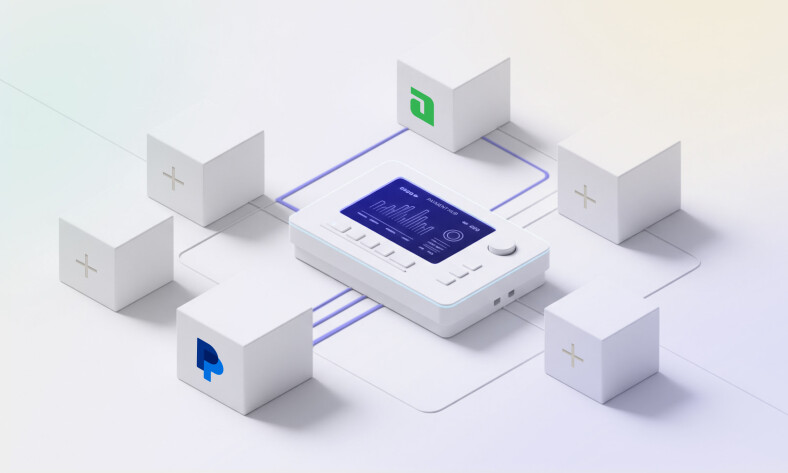
Checkout is one of the heaviest flows in commerce. It sits at the crossroads of pricing, payments, fraud checks, taxes, loyalty and fulfilment — and it all needs to happen in seconds. That’s why commercetools created commercetools Checkout, which allows you to leverage the built-in checkout UI, integrate multiple payment service providers (PSPs), and orchestrate them using flexible business logic rather than hard-coded rules
In this guide, we’ll walk you through five simple steps to set up commercetools Checkout with two PSP connectors, such as Adyen and PayPal. By the end, you’ll have a fully working checkout that can route transactions dynamically, give shoppers the payment choice they expect, and keep your business in control.
Here’s what the journey looks like at a high level:
Run and monitor the live journey: Shoppers see the right methods, payments get routed correctly and you track everything via events and messages.
The first step is to make PSPs available across your commercetools project.
Why it matters:
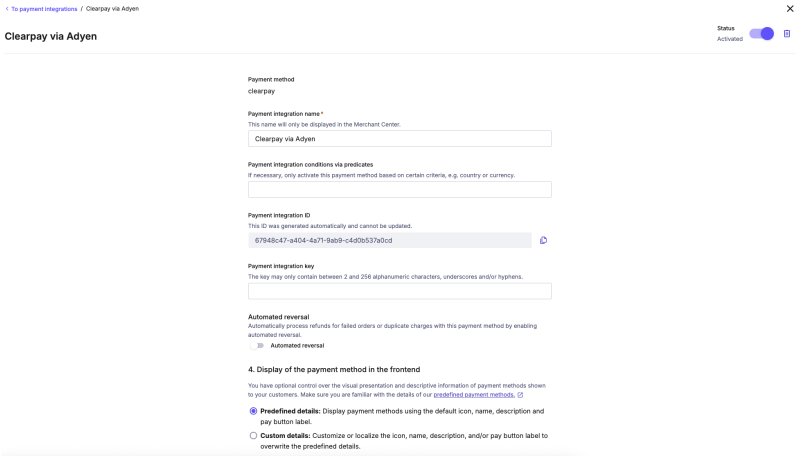
Now that PSPs are configured, it’s time to set up the actual checkout flow.
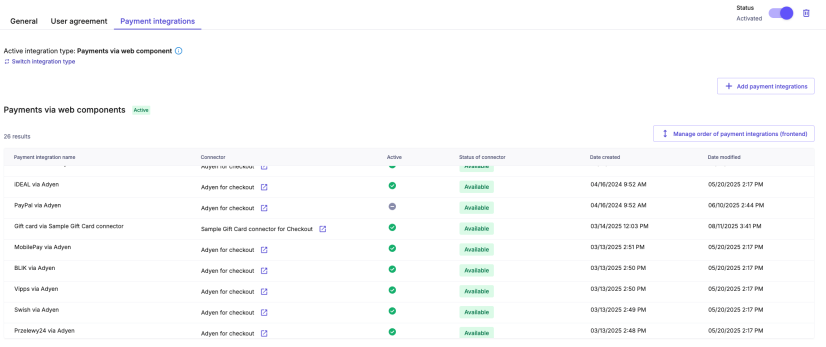
Why it matters:
Here’s where the real strategy comes in. You’re not just plugging in PSPs — you’re deciding how they work together.
In Checkout Admin, you can create rules such as:
Rules use the Payment Flows framework.
Why it matters:
Pro tip: Treat routing rules like pricing rules. Optimize them continuously to squeeze out more revenue.
Prerequisite: Create a Checkout Session (server-side).
Before you initialize the SDK, create a Checkout Session from your backend using the Sessions API. Use an access token with the manage_sessions scope, pass the Cart ID and your Checkout Application key, then capture the returned id — you’ll use it as sessionId in the SDK. Integrate Checkout
Example (HTTP):
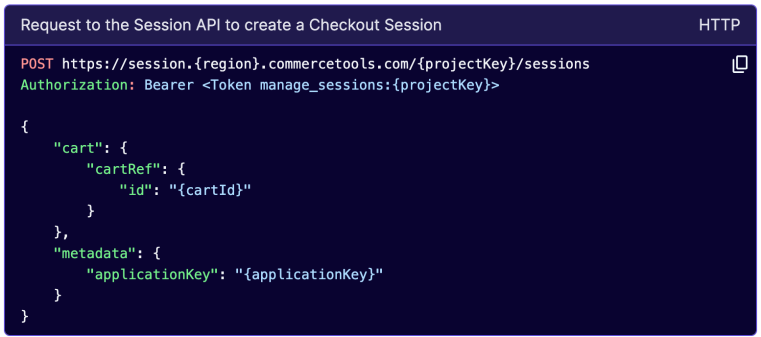
The response includes "id": "<session-id>". Use that value below as sessionId. commercetools
Install the SDK (frontend):
npm install @commercetools/checkout-browser-sdk
Initialize for Complete Checkout mode (frontend):
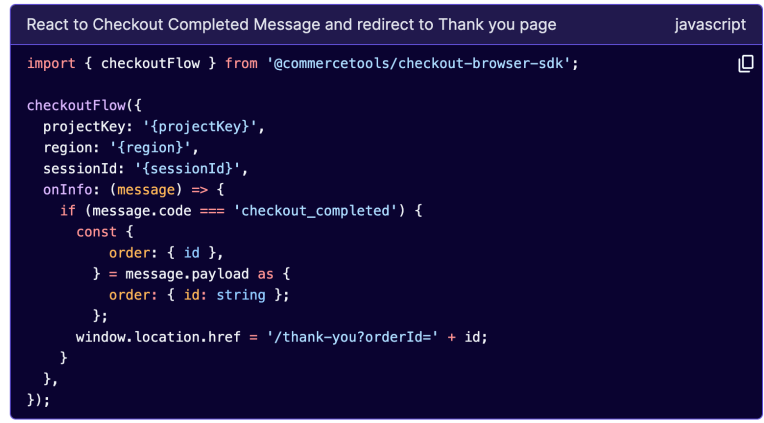
This uses the checkoutFlow method (Complete Checkout). It opens the Checkout UI for the provided sessionId. You can also render it inline by attaching it to an element with data-ctc, or keep the default full-screen overlay. See the SDK page for configuration options (locale, styles, address form overrides, skipping success/error pages, etc.).
Additionally, you can handle redirection to an order confirmation page by responding to Checkout messages/events.
Handle redirections from off-site payment methods:
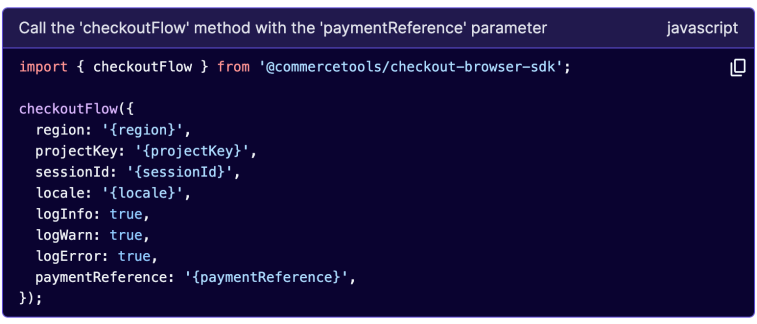
Checkout helps you handle redirects back to your site in cases where the buyer was redirected to an external site to complete a payment (e.g., Klarna).
You only have to pass Checkout the paymentReference obtained from the URL. Checkout will handle order creation and inform you of the result, so you can redirect the buyer to a thank-you page.
Why it matters:
Merchants can update checkout rules or connectors in Merchant Center without redeploying code.
Time to see it in action:
Behind the scenes, events flow through Checkout Messages and Events:
Why it matters:
You can adapt routing or add methods on the fly — without technical projects.
Configuring two PSPs in commercetools Checkout isn’t just about resilience — it’s about strategy.
With commercetools Checkout, you’re not trapped in DIY code or limited by a single PSP. You get choice, adaptability and business control — all from Merchant Center.
Get in touch with our experts and learn how to get started with commercetools Checkout.

Senior Product Manager specializing in checkout and payments. She leads initiatives to create seamless and reliable commerce experiences, improving journeys for both merchants and consumers. Passionate about innovation and user-centered design, Esra strives to make commerce more efficient, intuitive, and accessible for everyone.
Receive monthly updates on trends, products and growth insights in your inbox.